

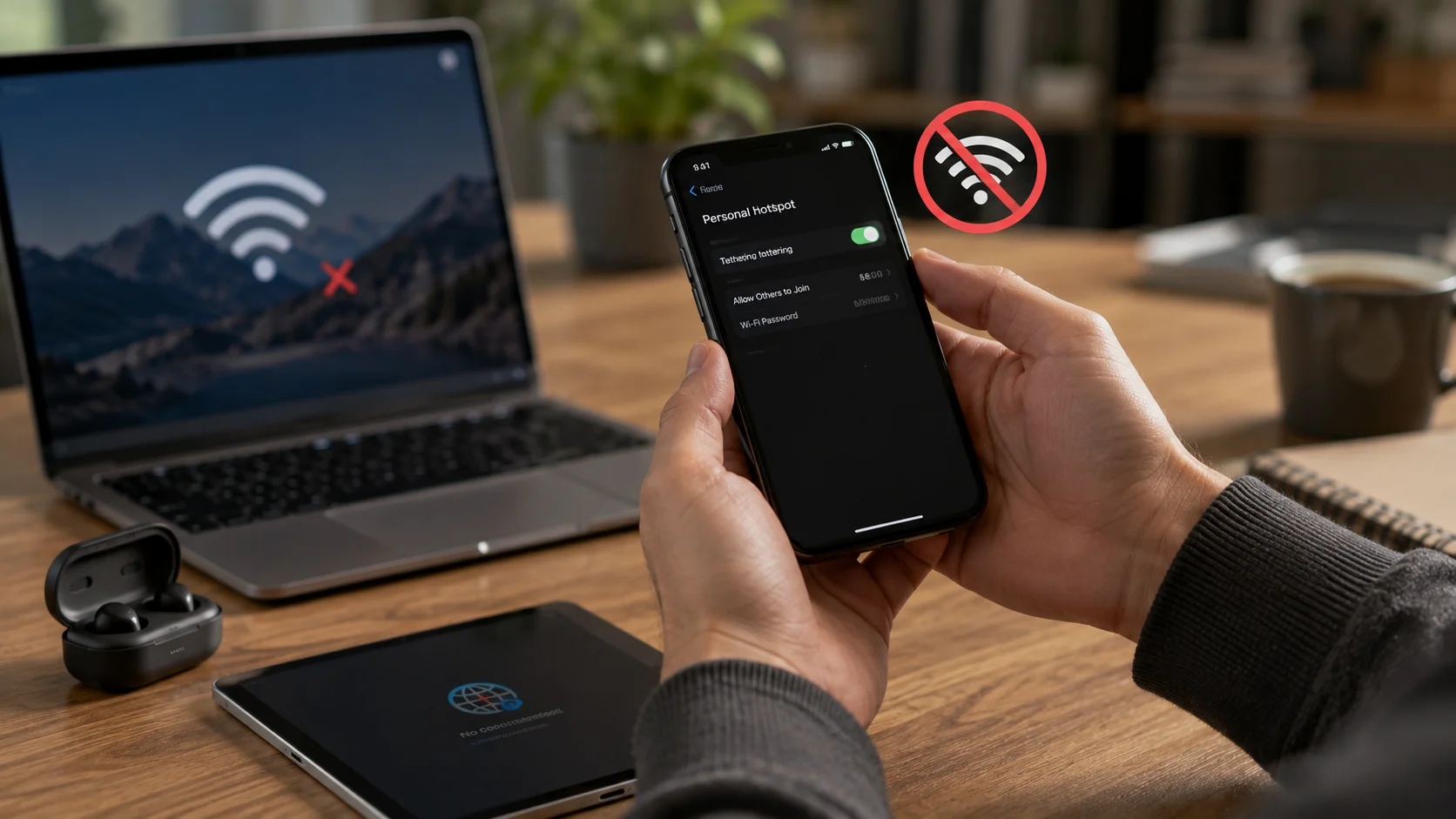
Personal Hotspot Not Working? 10 Fixes to Try
A personal hotspot turns your phone’s cellular data connection into an internet connection that other devices can use through Wi-Fi, Bluetooth, or USB tethering. It can be extremely useful when home Wi-Fi is unavailable, you are traveling, or your laptop needs temporary internet access. However, hotspot problems are common and can appear in several ways. Your computer may not see the hotspot, the connection may repeatedly disconnect, or a connected device may show “No Internet.” Sometimes the problem comes from the phone, while in other cases the carrier, laptop, network settings, or wireless frequency is responsible. Fortunately, most personal hotspot problems can be fixed without replacing the phone or contacting technical support.
The fastest troubleshooting approach is to determine whether mobile data works normally on the phone before changing advanced settings. If websites will not load directly on the phone, the hotspot usually cannot provide working internet to another device either. You should also check whether your mobile plan includes hotspot or tethering access because some carriers apply separate limits or restrictions. From there, simple steps such as toggling the hotspot, restarting devices, checking the password, changing the Wi-Fi band, or resetting network settings can solve many problems. More complicated cases may involve APN configuration, VPN software, carrier settings, or operating system issues. This guide walks through 10 practical fixes and explains what to try on iPhone, Android, Windows, Mac, and other connected devices.
What Is a Personal Hotspot and Why Does It Stop Working?
A personal hotspot allows a smartphone to share its mobile data connection with another device. Your phone connects to the cellular network through 4G, LTE, or 5G and then creates a local connection for a laptop, tablet, gaming device, or another phone. Wi-Fi tethering is the most familiar method because the phone behaves like a small wireless router. Bluetooth tethering can also share mobile internet using Bluetooth, while USB tethering sends the connection through a physical cable. The exact features available depend on the phone, operating system, carrier, and mobile plan. When everything works correctly, the connected device accesses the internet through the phone’s cellular connection.
Several different systems must work at the same time for hotspot sharing to succeed. The phone needs an active cellular signal, working mobile data, permission from the carrier, and a correctly configured tethering service. The receiving device needs a compatible Wi-Fi adapter or another supported connection method. Both devices must agree on security settings, password information, and wireless frequency. Software such as a VPN, firewall, battery-saving feature, or network-management application can sometimes interfere with this process. A failure in any one of these areas can make the hotspot appear unavailable even when the phone itself seems normal.
Signal quality is a common source of confusion because a hotspot cannot create faster internet than the cellular connection feeding it. If your phone has weak reception, the connected laptop may experience slow pages, buffering, or complete connection failures. Network congestion can also reduce performance even when the phone displays several signal bars. Moving near a window, going outdoors, or changing location can sometimes make a dramatic difference. Switching temporarily between 5G and LTE may also improve stability in areas where one network generation has inconsistent coverage. Hotspot troubleshooting should therefore begin by checking mobile internet performance directly on the phone.
Carrier restrictions can also prevent hotspot sharing even when ordinary mobile data works perfectly. Some plans include unlimited phone data but place separate limits on tethering usage. A carrier may reduce hotspot speed after a certain amount of data has been used or block the feature entirely on specific plans. Prepaid and roaming plans can also behave differently from normal domestic service. If the hotspot option disappears from settings or never works despite normal cellular data, checking the account or carrier configuration is worthwhile. A plan-related restriction cannot usually be solved by repeatedly restarting the phone.
Software changes are another reason a hotspot that worked yesterday may suddenly fail today. An operating system update can change networking behavior, while a VPN app may begin routing traffic differently after its own update. Saved Wi-Fi information on the laptop can also become corrupted or conflict with a changed hotspot password. Phones sometimes retain temporary network errors until their wireless radios or operating system are restarted. These issues are frustrating because nothing physically appears broken. Fortunately, many software-related hotspot problems respond to a systematic process of restarting connections, removing saved networks, checking settings, and resetting networking components.
Common Reasons Your Mobile Hotspot Is Not Working
The first common cause is that mobile data itself is unavailable. Your phone may show a cellular signal but still have no usable internet because of network congestion, an account issue, exhausted data allowance, or a temporary carrier outage. Testing a few websites or applications directly on the phone helps separate a cellular problem from a hotspot problem. If mobile data fails on the phone, troubleshooting the receiving laptop will not solve the underlying issue. Airplane Mode can occasionally refresh a problematic cellular registration when switched on briefly and then turned off. A full restart can also force the phone to reconnect to the carrier network cleanly.
Incorrect hotspot settings are another frequent cause. The hotspot may have been turned off automatically after a period with no connected devices, or a software update may have changed how discoverability works. A password can also contain a typo when entered on the receiving device. Some phones provide an option that changes compatibility between faster 5 GHz Wi-Fi and the more widely supported 2.4 GHz band. Older laptops, smart devices, and some wireless adapters may have difficulty connecting to a 5 GHz hotspot. Reviewing the hotspot name, password, visibility, and frequency settings can therefore solve connection problems quickly.
Network configuration conflicts can occur on either the phone or the receiving device. A laptop may remember an older password for the same hotspot name and repeatedly attempt to use it. Network adapters can also retain an incorrect IP address or DNS configuration after moving between different networks. On the phone, damaged network settings may affect Wi-Fi, Bluetooth, cellular connections, or tethering. Forgetting the saved hotspot on the computer and reconnecting from scratch is a good first step. If several networks behave strangely, a full network settings reset may eventually be necessary.
Battery and data-saving features can interfere with hotspot operation because tethering consumes considerable power and cellular data. Android phones may restrict background networking or automatically turn off the hotspot when no device has connected for a certain period. Battery Saver can limit performance, while Data Saver may change how some applications and tethered devices use cellular data. iPhones also use power-management features that can influence background behavior under certain conditions. Keeping the phone connected to a charger during long hotspot sessions can improve reliability. Reviewing battery optimization settings is especially useful when the hotspot disconnects repeatedly instead of refusing to start altogether.
VPNs, security applications, and corporate device-management policies can create more complicated failures. A VPN may route phone traffic through an encrypted tunnel that does not behave correctly with tethered devices. Security apps can filter DNS requests or modify network settings, while corporate phones may have hotspot functionality restricted by administrators. Testing the connection briefly with a VPN disabled can reveal whether it is part of the problem. Similarly, managed laptops may block connection to personal networks according to company policy. When hotspot failures occur only on a work phone or company computer, administrative restrictions should be considered alongside normal technical troubleshooting.
Personal Hotspot Not Working? 10 Fixes to Try
Fix 1: Turn the hotspot off and back on, and Fix 2: restart both devices. Begin with the simplest reset because temporary wireless problems are extremely common. Disable Personal Hotspot or Mobile Hotspot on the phone, wait several seconds, and enable it again. On the laptop or tablet, turn Wi-Fi off and back on before searching for the hotspot. If the connection still fails, restart both the phone and the device trying to connect. Restarting clears temporary network states, reloads wireless drivers, and forces both devices to negotiate a new connection. Many hotspot problems disappear after this basic process without any deeper configuration changes.
Fix 3: Confirm mobile data works, and Fix 4: check your carrier plan. Turn off Wi-Fi on the phone temporarily and test several websites using cellular data only. If nothing loads, solve the cellular connection problem before focusing on the hotspot. Check signal strength, remaining data allowance, account status, and whether a carrier outage may be affecting the area. If ordinary mobile data works but tethering does not, confirm that the mobile plan allows hotspot usage. Some plans provide limited high-speed hotspot data even when phone data itself is described as unlimited. Carrier restrictions are especially worth checking if the hotspot feature recently disappeared or stopped working after changing plans.
Fix 5: Recheck the hotspot password, and Fix 6: forget the network on the receiving device. Open the hotspot settings and verify the current Wi-Fi password carefully. If possible, temporarily use a simple but secure password containing ordinary letters and numbers to eliminate compatibility problems with unusual characters. On your laptop, open the saved Wi-Fi networks and remove or forget the phone’s hotspot. Search for the network again and enter the password manually instead of relying on the stored credential. This forces the device to create a fresh wireless profile. It is particularly effective when the computer sees the hotspot but repeatedly says it cannot connect.
Fix 7: Change the hotspot Wi-Fi band, and Fix 8: disable VPN or aggressive power-saving features temporarily. If your phone supports both 5 GHz and 2.4 GHz hotspot frequencies, switch to 2.4 GHz when older devices cannot connect. The 5 GHz band can provide higher speeds and less interference in some environments, but 2.4 GHz generally offers broader compatibility and range. Next, turn off an active VPN temporarily and test again. You can also disable Battery Saver, Low Power Mode, Data Saver, or similar restrictions for troubleshooting. If the connection suddenly works, re-enable features one by one to identify the actual conflict instead of leaving every protection disabled permanently.
Fix 9: Install available system or carrier updates, and Fix 10: reset network settings as a last software step. Phone and computer updates frequently contain fixes for Wi-Fi, cellular, USB, and Bluetooth networking problems. Install stable available operating system updates and restart the affected devices afterward. If the problem continues across multiple receiving devices, resetting the phone’s network settings can clear corrupted Wi-Fi, cellular, Bluetooth, VPN, and APN-related configuration depending on the platform. Remember that this reset usually removes saved Wi-Fi networks and may require reconnecting Bluetooth devices. After the reset, enable mobile data, recreate the hotspot, and test with one device before restoring additional network customizations.
Personal Hotspot Not Working on iPhone
On an iPhone, begin by opening the settings for Personal Hotspot and making sure other devices are allowed to join. Confirm that cellular data is enabled and test internet access directly on the iPhone without Wi-Fi. Keep the Personal Hotspot settings screen open temporarily while the other device searches for the network because this can help with discoverability in some situations. Verify the Wi-Fi password shown on that screen and enter it again on the laptop. If another Apple device is involved, confirm that Wi-Fi and Bluetooth are active as required by the connection method. Restarting both devices remains one of the most effective early troubleshooting steps.
If an older laptop or accessory cannot see the iPhone hotspot, look for a compatibility option related to maximizing compatibility where your iPhone model and software provide it. Enabling this generally favors a connection mode that can work better with devices unable to use the hotspot’s faster wireless configuration. The tradeoff may be lower maximum Wi-Fi performance compared with newer connection modes. Use the compatibility setting primarily when discoverability or connection negotiation is failing. Once the device connects, test actual internet access rather than assuming the problem is solved because Wi-Fi shows as connected. Cellular service still needs to provide working data behind the hotspot.
Carrier configuration matters on iPhone because Personal Hotspot depends partly on the mobile provider supporting tethering correctly. If the option is missing or behaves unusually after changing SIM cards, eSIM plans, or carriers, restart the device and allow available carrier configuration updates to install. You can also confirm with the provider that tethering is enabled on the line. Travelers should check whether hotspot data is allowed under the current roaming plan. If mobile data works but the hotspot has never worked on that specific SIM or plan, the carrier becomes a stronger suspect. Repeatedly resetting the laptop will not correct a provisioning restriction on the mobile account.
Network settings reset can help when Wi-Fi, cellular, Bluetooth, and hotspot behavior have all become unreliable. On iPhone, this process removes saved Wi-Fi networks and resets several network-related settings, so users should be prepared to reconnect afterward. It should generally come after simpler steps such as restarting, forgetting the network, and checking carrier service. Once the reset is complete, test the iPhone’s cellular data first. Then enable Personal Hotspot and connect one laptop using the freshly displayed password. Adding devices one at a time makes it easier to determine whether a particular client is contributing to the issue.
USB tethering can be a useful alternative when Wi-Fi hotspot performance is unstable and the computer supports the required connection. Connect the iPhone with a reliable data-capable cable rather than a cable designed only for charging. Depending on the computer and software environment, you may need to approve a trust prompt or ensure required Apple device-support components are available. A wired connection can provide better stability in crowded wireless environments and keeps the phone powered during longer sessions. Bluetooth-based sharing can also work in supported situations but is generally slower. Testing another tethering method helps determine whether the problem is specifically with Wi-Fi or with hotspot service overall.
Mobile Hotspot Not Working on Android
Android hotspot settings vary because manufacturers organize menus differently, but the basic troubleshooting process remains similar. Open the Mobile Hotspot or Wi-Fi Hotspot settings and confirm that the feature is enabled and configured to allow connections. Check the network name, security method, password, and any setting that automatically disables the hotspot when no devices are connected. Test mobile data directly on the phone before changing advanced options. Some dual-SIM Android phones also allow users to choose which SIM supplies mobile data. Make sure the line with active cellular service is the one currently selected for data usage.
The hotspot frequency setting can be especially important on Android because many phones let users choose between 2.4 GHz and 5 GHz bands. Start with 2.4 GHz if another device cannot find or join the hotspot. It usually offers stronger compatibility and better range, although nearby Wi-Fi networks and Bluetooth devices can create more interference on that band. If every device is modern and located close to the phone, 5 GHz may provide better performance. Some phones also offer an automatic mode that chooses the band dynamically. When troubleshooting, a fixed 2.4 GHz setting removes one variable and makes connection testing easier.
Android power-management settings can disable hotspots aggressively to preserve battery life. Look for an option that turns off the hotspot automatically when no clients are connected and increase the timeout or disable it temporarily. Battery Saver or manufacturer-specific optimization features can also restrict networking during low battery conditions. If the hotspot consistently shuts down after a few minutes, test while the phone is connected to a charger and Battery Saver is disabled. Excessive heat can also reduce performance because hotspot sharing, 5G connectivity, and charging generate substantial heat together. Remove heavy cases temporarily if the phone becomes unusually hot during extended tethering.
APN settings can affect tethering on certain carriers because the phone uses carrier-defined network information to establish mobile data services. Most users should not need to edit APN information manually because the SIM or carrier configuration provides it automatically. However, incorrect custom APN settings can cause a situation where phone data works differently from tethered data. If the problem started after manually changing APN information, restore the carrier’s recommended configuration. Avoid copying random APN values from unrelated networks because an incorrect configuration can break data service entirely. When uncertain, ask the mobile provider for the correct settings for your plan and device.
Android also provides USB tethering and Bluetooth tethering on many devices. USB tethering can be useful when Wi-Fi keeps dropping, but the computer must recognize the phone correctly through a data-capable USB connection. After connecting the cable, enable USB tethering in the phone’s network settings and check whether the computer creates a new network connection. If USB works while Wi-Fi does not, the cellular and carrier side of tethering is probably functional. The remaining problem is more likely related to hotspot Wi-Fi, frequency compatibility, or the receiving device. This comparison can save time by narrowing the troubleshooting area significantly.
Hotspot Connected but No Internet? Troubleshoot the Laptop or Tablet
Sometimes the phone hotspot works correctly, but one specific laptop cannot use it. The quickest test is to connect a second device such as another phone or tablet to the same hotspot. If the second device browses normally, the mobile data connection and hotspot service are probably functioning. Attention should then shift toward the original laptop’s Wi-Fi adapter, saved network settings, DNS configuration, firewall, or VPN. Forget the hotspot network and reconnect first because this clears many client-side authentication problems. Rebooting the laptop also resets temporary network services and can restore a wireless adapter that has entered an unstable state.
A device showing “Connected, no internet” may have obtained a Wi-Fi connection but failed to reach external websites. Try disconnecting from any VPN and close security tools that are specifically known to alter networking, but avoid disabling important protections unnecessarily for long periods. You can also test multiple websites or applications because one service being unavailable does not prove the internet connection itself is down. Checking whether the laptop received an IP address can provide further clues for technical users. If the address looks unusual or the system shows limited connectivity, disconnecting and reconnecting can trigger a fresh network configuration. Restarting the hotspot may also force the assignment process to begin again.
DNS problems can make the internet appear broken even when packet connectivity exists. DNS converts domain names into IP addresses, so failure can prevent a browser from finding websites by name. Testing another application may help distinguish a browser-specific problem from complete connectivity failure. Users who previously configured custom DNS settings can temporarily return them to automatic settings for troubleshooting. Similarly, manually assigned IP addresses on a laptop can conflict with the addressing used by the phone’s hotspot. Hotspot connections usually work best when the receiving device obtains IP and DNS information automatically unless there is a specific technical reason for customization.
Wireless adapter drivers can also cause trouble on Windows laptops, particularly after operating system updates or when older hardware is involved. Restart the computer before attempting driver changes because many temporary adapter failures resolve automatically after reboot. If the hotspot remains invisible while other Wi-Fi networks are visible, switching the phone to 2.4 GHz is a useful test. If no Wi-Fi networks work correctly, the issue is probably broader than the phone hotspot. Updating the laptop through its normal operating system and hardware-support channels may provide a newer wireless driver. Avoid installing unknown driver packages from untrusted download sites because they can introduce stability and security problems.
Macs, tablets, gaming devices, and smart hardware can experience similar compatibility issues even when their menus differ. Forgetting the saved network, restarting Wi-Fi, rebooting the device, and using the phone’s 2.4 GHz compatibility mode remain good universal steps. Check whether the device is allowed to join networks using the security method configured by the hotspot. Some older hardware has difficulty with newer wireless security or frequency combinations. If several different devices fail simultaneously, return attention to the phone or mobile provider rather than troubleshooting every client independently. Troubleshooting becomes much faster when you identify whether the failure follows the hotspot or follows one particular receiving device.
How to Keep Your Personal Hotspot Stable
Keep your phone in a location with strong cellular reception whenever you depend on hotspot service for important work. A hotspot cannot compensate for a poor mobile signal, and unstable cellular connectivity can look like a Wi-Fi problem on the laptop. Avoid placing the phone inside bags, drawers, or areas surrounded by metal objects that may reduce signal quality or trap heat. If possible, position the phone near a window or other area where mobile service performs consistently. Test both 5G and LTE when the phone allows network selection and one mode behaves poorly. The fastest network indicator does not always produce the most stable real-world connection in every location.
Heat management is also important because hotspot use can place a heavy load on the phone. Cellular radios, Wi-Fi transmission, processing, and charging can all generate heat at the same time. Excessive temperature may cause the device to reduce performance or disable certain features until it cools. Keep the phone away from direct sunlight and avoid covering it with materials that trap heat. If the battery is already very warm, use a cooler location before starting a long tethering session. A charger is useful during extended hotspot use, but high-power charging can create additional heat on some devices.
Use a strong hotspot password even if the connection is only temporary. An unauthorized user can consume your mobile data, reduce available bandwidth, or create privacy and security concerns. Avoid simple passwords such as 12345678 or obvious combinations based on your name. When traveling, periodically check the list of connected devices if your phone displays it. Disconnect or change the password if you see a device you do not recognize. Security matters because a personal hotspot creates a real wireless network even though it is generated by a phone rather than a traditional router.
Monitor data usage when tethering because laptops can consume much more data than phones without making it obvious. Operating system updates, cloud backups, video calls, file synchronization, streaming, and software downloads can use several gigabytes quickly. If your plan includes a separate hotspot allowance, reaching that threshold can result in slower speeds or loss of tethering functionality. Set the laptop connection as metered where appropriate if you need to reduce automatic background downloads. Pause unnecessary cloud synchronization during limited-data sessions. Data awareness helps distinguish technical hotspot problems from speed restrictions applied after reaching the plan’s allowance.
Finally, keep both the phone and frequently connected devices reasonably updated. Networking bugs are often corrected through operating system, carrier, modem, and driver updates. Avoid changing advanced APN, DNS, or network parameters without recording the original values because unnecessary customization can make later troubleshooting harder. If hotspot service is essential for work, keep a USB cable available as a backup connection method. Travelers may also benefit from knowing whether their mobile plan supports tethering while roaming before leaving home. A small amount of preparation can prevent a hotspot problem from becoming a major interruption when no regular Wi-Fi connection is available.
Frequently Asked Questions About Personal Hotspot Problems
Why is my personal hotspot not working?
Common causes include weak cellular data, hotspot restrictions on your mobile plan, an incorrect password, incompatible Wi-Fi bands, VPN conflicts, corrupted network settings, or problems with the receiving device. Start by checking whether mobile data works normally on the phone itself.
Why does my hotspot say connected but no internet?
The Wi-Fi connection between the phone and laptop may be working even though the phone has no usable cellular data. Carrier restrictions, DNS problems, VPN software, mobile network congestion, or incorrect client network settings can also produce a connected-without-internet message.
Why can’t my laptop find my phone hotspot?
The hotspot may not be discoverable, or the laptop may not support the wireless band currently being used. Turn the hotspot off and back on, keep its settings screen open, restart Wi-Fi on the laptop, and try switching the hotspot to 2.4 GHz or a compatibility mode.
Does a mobile carrier have to support hotspot use?
Yes, hotspot availability can depend on your mobile plan and carrier configuration. Some providers include tethering automatically, while others limit high-speed hotspot data or require a particular plan.
Will resetting network settings fix a hotspot?
It can fix problems caused by corrupted Wi-Fi, cellular, Bluetooth, or related network configuration. Because the reset usually removes saved wireless networks and other networking information, it is best used after simpler troubleshooting steps have failed.